Core Animation
Core Animation,中文翻译为核心动画,它是一组非常强大的动画处理API,使用它能做出非常炫丽的动画效果,而且往往是事半功倍。也就是说,使用少量的代码就可以实现非常强大的功能。
Core Animation可以用在Mac OS X和iOS平台。
Core Animation的动画执行过程都是在后台操作的,不会阻塞主线程。
要注意的是,Core Animation是直接作用在CALayer上的,并非UIView。
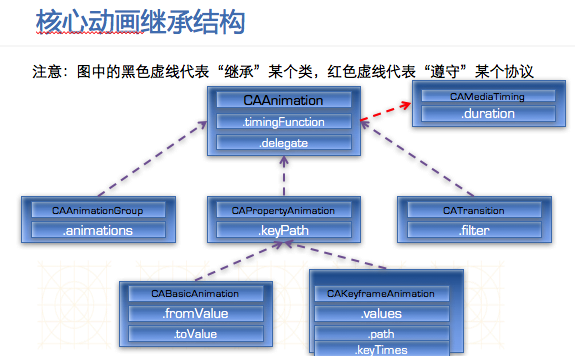
- Core Animation的使用步骤
如果不是xcode5之后的版本,使用它需要先添加QuartzCore.framework和引入对应的框架
开发步骤:
1.首先得有CALayer
2.初始化一个CAAnimation对象,并设置一些动画相关属性
3.通过调用CALayer的addAnimation:forKey:方法,增加CAAnimation对象到CALayer中,这样就能开始执行动画了
4.通过调用CALayer的removeAnimationForKey:方法可以停止CALayer中的动画
CAAnimation——简介
是所有动画对象的父类,负责控制动画的持续时间和速度,是个抽象类,不能直接使用,应该使用它具体的子类
属性说明:(红色代表来自CAMediaTiming协议的属性)
duration:动画的持续时间
repeatCount:重复次数,无限循环可以设置HUGE_VALF或者MAXFLOAT
repeatDuration:重复时间
removedOnCompletion:默认为YES,代表动画执行完毕后就从图层上移除,图形会恢复到动画执行前的状态。如果想让图层保持显示动画执行后的状态,那就设置为NO,不过还要设置fillMode为kCAFillModeForwards
fillMode:决定当前对象在非active时间段的行为。比如动画开始之前或者动画结束之后
beginTime:可以用来设置动画延迟执行时间,若想延迟2s,就设置为CACurrentMediaTime()+2,CACurrentMediaTime()为图层的当前时间
timingFunction:速度控制函数,控制动画运行的节奏 delegate:动画代理
CAAnimation——动画填充模式
fillMode属性值(要想fillMode有效,最好设置removedOnCompletion = NO)
kCAFillModeRemoved 这个是默认值,也就是说当动画开始前和动画结束后,动画对layer都没有影响,动画结束后,layer会恢复到之前的状态
kCAFillModeForwards 当动画结束后,layer会一直保持着动画最后的状态
kCAFillModeBackwards 在动画开始前,只需要将动画加入了一个layer,layer便立即进入动画的初始状态并等待动画开始。
kCAFillModeBoth 这个其实就是上面两个的合成.动画加入后开始之前,layer便处于动画初始状态,动画结束后layer保持动画最后的状态
CAAnimation——速度控制函数
速度控制函数(CAMediaTimingFunction)
- kCAMediaTimingFunctionLinear(线性):匀速,给你一个相对静态的感觉
- kCAMediaTimingFunctionEaseIn(渐进):动画缓慢进入,然后加速离开
- kCAMediaTimingFunctionEaseOut(渐出):动画全速进入,然后减速的到达目的地
- kCAMediaTimingFunctionEaseInEaseOut(渐进渐出):动画缓慢的进入,中间加速,然后减速的到达目的地。这个是默认的动画行为。
CAAnimation——动画代理方法
- CAAnimation在分类中定义了代理方法
@interface NSObject (CAAnimationDelegate)

/* Called when the animation begins its active duration. */

- (void)animationDidStart:(CAAnimation *)anim;

/* Called when the animation either completes its active duration or
 * is removed from the object it is attached to (i.e. the layer). 'flag'
 * is true if the animation reached the end of its active duration
 * without being removed. */

- (void)animationDidStop:(CAAnimation *)anim finished:(BOOL)flag;

@end
CALayer上动画的暂停和恢复
#pragma mark 暂停CALayer的动画 -(void)pauseLayer:(CALayer*)layer { CFTimeInterval pausedTime = [layer convertTime:CACurrentMediaTime() fromLayer:nil]; // 让CALayer的时间停止走动 layer.speed = 0.0; // 让CALayer的时间停留在pausedTime这个时刻 layer.timeOffset = pausedTime; }- CALayer上动画的恢复
#pragma mark 恢复CALayer的动画
-(void)resumeLayer:(CALayer*)layer
{
    CFTimeInterval pausedTime = layer.timeOffset;
    // 1. 让CALayer的时间继续行走
      layer.speed = 1.0;
    // 2. 取消上次记录的停留时刻
      layer.timeOffset = 0.0;
    // 3. 取消上次设置的时间
      layer.beginTime = 0.0;
    // 4. 计算暂停的时间(这里也可以用CACurrentMediaTime()-pausedTime)
    CFTimeInterval timeSincePause = [layer convertTime:CACurrentMediaTime() fromLayer:nil] - pausedTime;
    // 5. 设置相对于父坐标系的开始时间(往后退timeSincePause)
      layer.beginTime = timeSincePause;
}
CAPropertyAnimation
是CAAnimation的子类,也是个抽象类,要想创建动画对象,应该使用它的两个子类:
- CABasicAnimation
- CAKeyframeAnimation
属性说明:
- keyPath:通过指定CALayer的一个属性名称为keyPath(NSString类型),并且对CALayer的这个属性的值进行修改,达到相应的动画效果。比如,指定@“position”为keyPath,就修改CALayer的position属性的值,以达到平移的动画效果
CABasicAnimation——基本动画
基本动画,是CAPropertyAnimation的子类
属性说明:
- fromValue:keyPath相应属性的初始值
- toValue:keyPath相应属性的结束值
动画过程说明:
随着动画的进行,在长度为duration的持续时间内,keyPath相应属性的值从fromValue渐渐地变为toValue
keyPath内容是CALayer的可动画Animatable属性
如果fillMode=kCAFillModeForwards同时removedOnComletion=NO,那么在动画执行完毕后,图层会保持显示动画执行后的状态。但在实质上,图层的属性值还是动画执行前的初始值,并没有真正被改变。
CAKeyframeAnimation——关键帧动画
关键帧动画,也是CAPropertyAnimation的子类,与CABasicAnimation的区别是: CABasicAnimation只能从一个数值(fromValue)变到另一个数值(toValue),而CAKeyframeAnimation会使用一个NSArray保存这些数值
属性说明:
values:上述的NSArray对象。里面的元素称为“关键帧”(keyframe)。动画对象会在指定的时间(duration)内,依次显示values数组中的每一个关键帧
path:可以设置一个CGPathRef、CGMutablePathRef,让图层按照路径轨迹移动。path只对CALayer的anchorPoint和position起作用。如果设置了path,那么values将被忽略
keyTimes:可以为对应的关键帧指定对应的时间点,其取值范围为0到1.0,keyTimes中的每一个时间值都对应values中的每一帧。如果没有设置keyTimes,各个关键帧的时间是平分的
CABasicAnimation可看做是只有2个关键帧的CAKeyframeAnimation
CAAnimationGroup——动画组
动画组,是CAAnimation的子类,可以保存一组动画对象,将CAAnimationGroup对象加入层后,组中所有动画对象可以同时并发运行
属性说明:
animations:用来保存一组动画对象的NSArray
默认情况下,一组动画对象是同时运行的,也可以通过设置动画对象的beginTime属性来更改动画的开始时间
转场动画——CATransition
CATransition是CAAnimation的子类,用于做转场动画,能够为层提供移出屏幕和移入屏幕的动画效果。iOS比Mac OS X的转场动画效果少一点
UINavigationController就是通过CATransition实现了将控制器的视图推入屏幕的动画效果
动画属性:
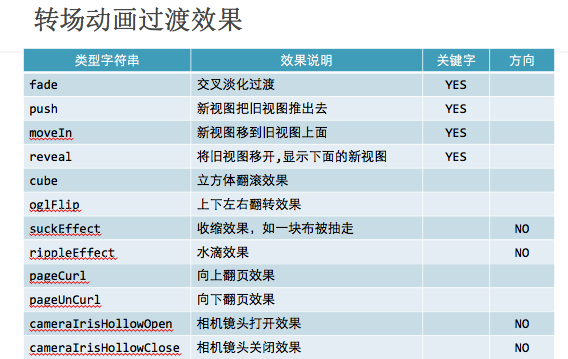
type:动画过渡类型
subtype:动画过渡方向
startProgress:动画起点(在整体动画的百分比)
endProgress:动画终点(在整体动画的百分比)
static int i = 2;

- (void)touchesBegan:(NSSet *)touches withEvent:(UIEvent *)event
{

    // 转场代码
    if (i == 4) {
        i = 1;
    }
    // 加载图片名称
    NSString *imageN = [NSString stringWithFormat:@"%d",i];

    _imageView.image = [UIImage imageNamed:imageN];

    i++;

    // 转场动画
    CATransition *anim = [CATransition animation];

    anim.type = @"pageCurl";

    anim.duration = 2;

    [_imageView.layer addAnimation:anim forKey:nil];
}
- 使用UIView动画函数实现转场动画——单视图
+ (void)transitionWithView:(UIView *)view duration:(NSTimeInterval)duration options:(UIViewAnimationOptions)options animations:(void (^)(void))animations completion:(void (^)(BOOL finished))completion;

参数说明:
duration:动画的持续时间
view:需要进行转场动画的视图
options:转场动画的类型
animations:将改变视图属性的代码放在这个block中
completion:动画结束后,会自动调用这个block
- 使用UIView动画函数实现转场动画——双视图
+ (void)transitionFromView:(UIView *)fromView toView:(UIView *)toView duration:(NSTimeInterval)duration options:(UIViewAnimationOptions)options completion:(void (^)(BOOL finished))completion;

参数说明:
duration:动画的持续时间
options:转场动画的类型
animations:将改变视图属性的代码放在这个block中
completion:动画结束后,会自动调用这个block
CADisplayLink
CADisplayLink是一种以屏幕刷新频率触发的时钟机制,每秒钟执行大约60次左右
CADisplayLink是一个计时器,可以使绘图代码与视图的刷新频率保持同步,而NSTimer无法确保计时器实际被触发的准确时间
使用方法:
- 定义CADisplayLink并制定触发调用方法
- 将显示链接添加到主运行循环队列
核心动画和UIView的区别
核心动画一切都是假象,并不会真实的改变图层的属性值,如果以后做动画的时候,不需要与用户交互,通常用核心动画(转场)。
UIView动画必须通过修改属性的真实值,才有动画效果。
折叠图片
#import "ViewController.h"

@interface ViewController ()
@property (weak, nonatomic) IBOutlet UIImageView *topView;
@property (weak, nonatomic) IBOutlet UIImageView *bottomView;
@property (weak, nonatomic) IBOutlet UIView *dragView;

@property (nonatomic, weak) CAGradientLayer *gradientL;

@end

@implementation ViewController
// 一张图片必须要通过两个控件展示,旋转的时候,只旋转上部分控件
// 如何让一张完整的图片通过两个控件显示
// 通过layer控制图片的显示内容
// 如果快速把两个控件拼接成一个完整图片
- (void)viewDidLoad {
    [super viewDidLoad];
    // 通过设置contentsRect可以设置图片显示的尺寸,取值0~1
    _topView.layer.contentsRect = CGRectMake(0, 0, 1, 0.5);
    _topView.layer.anchorPoint = CGPointMake(0.5, 1);

    _bottomView.layer.contentsRect = CGRectMake(0, 0.5, 1, 0.5);
    _bottomView.layer.anchorPoint = CGPointMake(0.5, 0);

    // 添加手势
    UIPanGestureRecognizer *pan = [[UIPanGestureRecognizer alloc] initWithTarget:self action:@selector(pan:)];

    [_dragView addGestureRecognizer:pan];

    // 渐变图层
    CAGradientLayer *gradientL = [CAGradientLayer layer];

    // 注意图层需要设置尺寸
    gradientL.frame = _bottomView.bounds;

    gradientL.opacity = 0;
    gradientL.colors = @[(id)[UIColor clearColor].CGColor,(id)[UIColor blackColor].CGColor];
    _gradientL = gradientL;
    // 设置渐变颜色
//    gradientL.colors = @[(id)[UIColor redColor].CGColor,(id)[UIColor greenColor].CGColor,(id)[UIColor yellowColor].CGColor];

    // 设置渐变定位点
//    gradientL.locations = @[@0.1,@0.4,@0.5];

    // 设置渐变开始点,取值0~1
//    gradientL.startPoint = CGPointMake(0, 1);

    [_bottomView.layer addSublayer:gradientL];
}

// 拖动的时候旋转上部分内容,200 M_PI
- (void)pan:(UIPanGestureRecognizer *)pan
{
    // 获取偏移量
   CGPoint transP = [pan translationInView:_dragView];

    // 旋转角度,往下逆时针旋转
    CGFloat angle = -transP.y / 200.0 * M_PI;

    CATransform3D transfrom = CATransform3DIdentity;

    // 增加旋转的立体感,近大远小,d:距离图层的距离
    transfrom.m34 = -1 / 500.0;

    transfrom = CATransform3DRotate(transfrom, angle, 1, 0, 0);

    _topView.layer.transform = transfrom;

    // 设置阴影效果
    _gradientL.opacity = transP.y * 1 / 200.0;

    if (pan.state == UIGestureRecognizerStateEnded) { // 反弹

        // 弹簧效果的动画
        // SpringWithDamping:弹性系数,越小,弹簧效果越明显
        [UIView animateWithDuration:0.6 delay:0 usingSpringWithDamping:0.2 initialSpringVelocity:10 options:UIViewAnimationOptionCurveEaseInOut animations:^{

            _topView.layer.transform = CATransform3DIdentity;

        } completion:^(BOOL finished) {
        }];
    }
}
音量振动条
@implementation ViewController
- (void)viewDidLoad {
    [super viewDidLoad];
    // CAReplicatorLayer复制图层,可以把图层里面所有子层复制
    // 创建复制图层
    CAReplicatorLayer *repL = [CAReplicatorLayer layer];

    repL.frame = _lightView.bounds;

    [_lightView.layer addSublayer:repL];

    CALayer *layer = [CALayer layer];

    layer.anchorPoint = CGPointMake(0.5, 1);
    layer.position = CGPointMake(15, _lightView.bounds.size.height);
    layer.bounds = CGRectMake(0, 0, 30, 150);

    layer.backgroundColor = [UIColor whiteColor].CGColor;

    [repL addSublayer:layer];

    CABasicAnimation *anim = [CABasicAnimation animation];

    anim.keyPath = @"transform.scale.y";

    anim.toValue = @0.1;

    anim.duration = 0.5;

    anim.repeatCount = MAXFLOAT;

    // 设置动画反转
    anim.autoreverses = YES;

    [layer addAnimation:anim forKey:nil];

    // 复制层中子层总数
    // instanceCount:表示复制层里面有多少个子层,包括原始层
    repL.instanceCount = 3;

    // 设置复制子层偏移量,不包括原始层,相对于原始层x偏移
    repL.instanceTransform = CATransform3DMakeTranslation(45, 0, 0);

    // 设置复制层动画延迟时间
    repL.instanceDelay = 0.1;

    // 如果设置了原始层背景色,就不需要设置这个属性
    repL.instanceColor = [UIColor greenColor].CGColor;

    repL.instanceGreenOffset = -0.3;
}
活动指示器
- (void)viewDidLoad {
    [super viewDidLoad];
    // Do any additional setup after loading the view, typically from a nib.

    CAReplicatorLayer *repL = [CAReplicatorLayer layer];

    repL.frame = _redView.bounds;

    [_redView.layer addSublayer:repL];

    CALayer *layer = [CALayer layer];

    layer.transform = CATransform3DMakeScale(0, 0, 0);

    layer.position = CGPointMake(_redView.bounds.size.width / 2, 20);

    layer.bounds = CGRectMake(0, 0, 10, 10);

    layer.backgroundColor = [UIColor greenColor].CGColor;

    [repL addSublayer:layer];

    // 设置缩放动画
    CABasicAnimation *anim = [CABasicAnimation animation];

    anim.keyPath = @"transform.scale";

    anim.fromValue = @1;

    anim.toValue = @0;

    anim.repeatCount = MAXFLOAT;

    CGFloat duration = 1;

    anim.duration = duration;

    [layer addAnimation:anim forKey:nil];

    int count = 20;

    CGFloat angle = M_PI * 2 / count;

    // 设置子层总数
    repL.instanceCount = count;

    repL.instanceTransform = CATransform3DMakeRotation(angle, 0, 0, 1);

    repL.instanceDelay = duration / count;
}
粒子效果
#import <UIKit/UIKit.h>

@interface DrawView : UIView
- (void)startAnim;

- (void)reDraw;
@end
#import "DrawView.h"
@interface DrawView ()
@property (nonatomic, strong) UIBezierPath *path;
@property (nonatomic, weak) CALayer *dotLayer;
@property (nonatomic, weak) CAReplicatorLayer *repL;
@end

@implementation DrawView
#pragma mark - 懒加载点层
- (CALayer *)dotLayer
{
    if (_dotLayer == nil) {
        // 创建图层
        CALayer *layer = [CALayer layer];

        CGFloat wh = 10;
        layer.frame = CGRectMake(0, -1000, wh, wh);

        layer.cornerRadius = wh / 2;

        layer.backgroundColor = [UIColor blueColor].CGColor;
        [_repL addSublayer:layer];

        _dotLayer = layer;
    }
    return _dotLayer;
}

- (UIBezierPath *)path
{
    if (_path == nil) {
        _path = [UIBezierPath bezierPath];
    }

    return _path;
}
#pragma mark - 开始点击调用
- (void)touchesBegan:(NSSet *)touches withEvent:(UIEvent *)event
{
    // 获取touch对象
    UITouch *touch = [touches anyObject];

    // 获取当前触摸点
    CGPoint curP = [touch locationInView:self];

    // 设置起点
    [self.path moveToPoint:curP];
}

static int _instansCount = 0;
- (void)touchesMoved:(NSSet *)touches withEvent:(UIEvent *)event
{
    // 获取touch对象
    UITouch *touch = [touches anyObject];

    // 获取当前触摸点
    CGPoint curP = [touch locationInView:self];

    // 添加线到某个点
    [_path addLineToPoint:curP];

    // 重绘
    [self setNeedsDisplay];

    _instansCount ++;
}

- (void)drawRect:(CGRect)rect {
    [_path stroke];
}

#pragma mark - 开始动画
- (void)startAnim
{
    // 创建帧动画
    CAKeyframeAnimation *anim = [CAKeyframeAnimation animation];

    anim.keyPath = @"position";

    anim.path = _path.CGPath;

    anim.duration = 3;

    anim.repeatCount = MAXFLOAT;

    [self.dotLayer addAnimation:anim forKey:nil];

    // 注意:如果复制的子层有动画,先添加动画,在复制
    // 复制子层
    _repL.instanceCount = _instansCount;

    // 延迟图层动画
    _repL.instanceDelay = 0.2;
}

#pragma mark - 加载完xib调用,创建复制层
- (void)awakeFromNib
{
    // 创建复制层
    CAReplicatorLayer *repL = [CAReplicatorLayer layer];
    repL.frame = self.bounds;

    [self.layer addSublayer:repL];

    _repL = repL;
}

#pragma mark - 重绘
- (void)reDraw
{
    // 清空绘图信息
    _path = nil;
    [self setNeedsDisplay];

    // 把图层移除父控件,复制层也会移除。
     [_dotLayer removeFromSuperlayer];
    _dotLayer = nil;

    // 清空子层总数
    _instansCount = 0;
}
@end
#import "ViewController.h"
#import "DrawView.h"
@interface ViewController ()
@end

@implementation ViewController
#pragma mark - 点击开始动画
- (IBAction)startAnim:(id)sender {

    DrawView *view = (DrawView *)self.view;
    [view startAnim];
}

- (IBAction)reDraw:(id)sender {
    DrawView *view = (DrawView *)self.view;
    [view reDraw];
}
倒影
@implementation RepView
// 设置控件主层的类型
+ (Class)layerClass
{
    return [CAReplicatorLayer class];
}
- (void)viewDidLoad {
    [super viewDidLoad];

    CAReplicatorLayer *layer =  (CAReplicatorLayer *)_repView.layer;

    layer.instanceCount = 2;

    CATransform3D transform = CATransform3DMakeTranslation(0, _repView.bounds.size.height, 0);
    // 绕着X轴旋转
    transform = CATransform3DRotate(transform, M_PI, 1, 0, 0);

    // 往下面平移控件的高度
    layer.instanceTransform = transform;

    layer.instanceAlphaOffset = -0.1;
    layer.instanceBlueOffset = -0.1;
    layer.instanceGreenOffset = -0.1;
    layer.instanceRedOffset = -0.1;
}
QQ粘性效果
#import "GooView.h"

@interface GooView ()

@property (nonatomic, weak) UIView  *smallCircleView;

@property (nonatomic, assign) CGFloat oriSmallRadius;

@property (nonatomic, weak) CAShapeLayer *shapeLayer;

@end

@implementation GooView

- (CAShapeLayer *)shapeLayer
{
    if (_shapeLayer == nil) {

        // 展示不规则矩形,通过不规则矩形路径生成一个图层
        CAShapeLayer *layer = [CAShapeLayer layer];

        _shapeLayer = layer;

        layer.fillColor = self.backgroundColor.CGColor;

        [self.superview.layer insertSublayer:layer below:self.layer];

    }

    return _shapeLayer;

}


- (UIView *)smallCircleView
{
    if (_smallCircleView == nil) {

        UIView *view = [[UIView alloc] init];

        view.backgroundColor = self.backgroundColor;

        _smallCircleView = view;

        // 小圆添加按钮的父控件上
        [self.superview insertSubview:view belowSubview:self];

    }
    return _smallCircleView;
}

- (instancetype)initWithFrame:(CGRect)frame
{
    if (self = [super initWithFrame:frame]) {

        [self setUp];
    }
    return self;
}
- (void)awakeFromNib
{

    [self setUp];
}

#pragma mark - 初始化
- (void)setUp
{
    CGFloat w = self.bounds.size.width;

    // 记录小圆最初始半径
    _oriSmallRadius = w / 2;

    self.layer.cornerRadius = w / 2;

    [self setTitleColor:[UIColor whiteColor] forState:UIControlStateNormal];

    self.titleLabel.font = [UIFont systemFontOfSize:12];

    // 添加手势
    UIPanGestureRecognizer *pan = [[UIPanGestureRecognizer alloc] initWithTarget:self action:@selector(pan:)];

    [self addGestureRecognizer:pan];

    // 设置小圆位置和尺寸
    self.smallCircleView.center = self.center;
    self.smallCircleView.bounds = self.bounds;
    self.smallCircleView.layer.cornerRadius = w / 2;
}

// 最大圆心距离
#define kMaxDistance 80

- (void)pan:(UIPanGestureRecognizer *)pan
{
#warning 移动控件位置
    // 获取手指偏移量
   CGPoint transP = [pan translationInView:self];


    // 修改center
    CGPoint center = self.center;
    center.x += transP.x;
    center.y += transP.y;

    self.center = center;

    // 复位
    [pan setTranslation:CGPointZero inView:self];

#warning 设置小圆半径
    // 显示后面圆,后面圆的半径,随着两个圆心的距离不断增加而减小。
    // 计算圆心距离
    CGFloat d = [self circleCenterDistanceWithBigCircleCenter:self.center smallCircleCenter:self.smallCircleView.center];

    // 计算小圆的半径
    CGFloat smallRadius = _oriSmallRadius - d / 10;

    // 设置小圆的尺寸
    self.smallCircleView.bounds = CGRectMake(0, 0, smallRadius * 2, smallRadius * 2);

    self.smallCircleView.layer.cornerRadius = smallRadius;

#warning 描述不规则矩形
//    // 绘制不规则矩形,不能通过绘图,因为绘图只能在当前控件上画,超出部分不会显示。
//
//    // 两圆产生距离才需要绘制
//    if (d) {
//
//
//    }

    // 当圆心距离大于最大圆心距离
    if (d > kMaxDistance) { // 可以拖出来
        // 隐藏小圆
        self.smallCircleView.hidden = YES;

        // 移除不规则的矩形
        [self.shapeLayer removeFromSuperlayer];
        self.shapeLayer = nil;

    }else if(d > 0 && self.smallCircleView.hidden == NO){ // 有圆心距离,并且圆心距离不大,才需要展示
        // 展示不规则矩形,通过不规则矩形路径生成一个图层

        self.shapeLayer.path = [self pathWithBigCirCleView:self smallCirCleView:self.smallCircleView].CGPath;
    }


#warning 手指抬起的时候,还原
    if (pan.state == UIGestureRecognizerStateEnded) {

        // 当圆心距离大于最大圆心距离
        if (d > kMaxDistance) {
            // 展示gif动画

            UIImageView *imageView = [[UIImageView alloc] initWithFrame:self.bounds];

            NSLog(@"%f",self.bounds.origin.x);

            NSMutableArray *arrM = [NSMutableArray array];
            for (int i = 1; i < 9; i++) {
                UIImage *image = [UIImage imageNamed:[NSString stringWithFormat:@"%d",i]];

                [arrM addObject:image];
            }
            imageView.animationImages = arrM;

            imageView.animationRepeatCount = 1;

            imageView.animationDuration = 0.5;

            [imageView startAnimating];

            [self addSubview:imageView];


            dispatch_after(dispatch_time(DISPATCH_TIME_NOW, (int64_t)(0.4 * NSEC_PER_SEC)), dispatch_get_main_queue(), ^{
                [self removeFromSuperview];
            });

        }else{

            // 移除不规则矩形
            [self.shapeLayer removeFromSuperlayer];
            self.shapeLayer = nil;

            // 还原位置
            [UIView animateWithDuration:0.5 delay:0 usingSpringWithDamping:0.2 initialSpringVelocity:0 options:UIViewAnimationOptionCurveLinear animations:^{
                // 设置大圆中心点位置
                self.center = self.smallCircleView.center;

            } completion:^(BOOL finished) {
                // 显示小圆
                self.smallCircleView.hidden = NO;
            }];

        }

    }

}

// 计算两个圆心之间的距离
- (CGFloat)circleCenterDistanceWithBigCircleCenter:(CGPoint)bigCircleCenter smallCircleCenter:(CGPoint)smallCircleCenter
{
    CGFloat offsetX = bigCircleCenter.x - smallCircleCenter.x;
    CGFloat offsetY = bigCircleCenter.y - smallCircleCenter.y;

    return  sqrt(offsetX * offsetX + offsetY * offsetY);
}

// 描述两圆之间一条矩形路径
- (UIBezierPath *)pathWithBigCirCleView:(UIView *)bigCirCleView  smallCirCleView:(UIView *)smallCirCleView
{
    CGPoint bigCenter = bigCirCleView.center;
    CGFloat x2 = bigCenter.x;
    CGFloat y2 = bigCenter.y;
    CGFloat r2 = bigCirCleView.bounds.size.width / 2;

    CGPoint smallCenter = smallCirCleView.center;
    CGFloat x1 = smallCenter.x;
    CGFloat y1 = smallCenter.y;
    CGFloat r1 = smallCirCleView.bounds.size.width / 2;


    // 获取圆心距离
   CGFloat d = [self circleCenterDistanceWithBigCircleCenter:bigCenter smallCircleCenter:smallCenter];

    CGFloat sinθ = (x2 - x1) / d;

    CGFloat cosθ = (y2 - y1) / d;

    // 坐标系基于父控件
    CGPoint pointA = CGPointMake(x1 - r1 * cosθ , y1 + r1 * sinθ);
    CGPoint pointB = CGPointMake(x1 + r1 * cosθ , y1 - r1 * sinθ);
    CGPoint pointC = CGPointMake(x2 + r2 * cosθ , y2 - r2 * sinθ);
    CGPoint pointD = CGPointMake(x2 - r2 * cosθ , y2 + r2 * sinθ);
    CGPoint pointO = CGPointMake(pointA.x + d / 2 * sinθ , pointA.y + d / 2 * cosθ);
    CGPoint pointP =  CGPointMake(pointB.x + d / 2 * sinθ , pointB.y + d / 2 * cosθ);

    UIBezierPath *path = [UIBezierPath bezierPath];

    // A
    [path moveToPoint:pointA];

    // AB
    [path addLineToPoint:pointB];

    // 绘制BC曲线
    [path addQuadCurveToPoint:pointC controlPoint:pointP];

    // CD
    [path addLineToPoint:pointD];

    // 绘制DA曲线
    [path addQuadCurveToPoint:pointA controlPoint:pointO];

    return path;

}