UITableViewController
错误将UIViewController当做UITableViewController来用

UITableView的常见设置
// 分割线颜色
self.tableView.separatorColor = [UIColor redColor];

// 隐藏分割线
self.tableView.separatorStyle = UITableViewCellSeparatorStyleNone;

// tableView有数据的时候才需要分割线
// 开发小技巧:快速取消分割线
 self.tableView.tableFooterView = [[UIView alloc] init];
UITableViewCell的常见设置
// 取消选中的样式(常用) 让当前 cell 按下无反应
cell.selectionStyle = UITableViewCellSelectionStyleNone;

// 设置选中的背景色
UIView *selectedBackgroundView = [[UIView alloc] init];
selectedBackgroundView.backgroundColor = [UIColor redColor];
cell.selectedBackgroundView = selectedBackgroundView;

// 设置默认的背景色
cell.backgroundColor = [UIColor blueColor];

// 设置默认的背景色
UIView *backgroundView = [[UIView alloc] init];
backgroundView.backgroundColor = [UIColor greenColor];
cell.backgroundView = backgroundView;

// backgroundView的优先级 > backgroundColor
// 设置指示器
//    cell.accessoryType = UITableViewCellAccessoryDisclosureIndicator;
cell.accessoryView = [[UISwitch alloc] init];
- 设置cell选中时的高亮图片
 // 设置高亮图片(cell选中 -> cell.imageView.highlighted = YES -> cell.imageView显示highlightedImage这个图片)
    cell.imageView.highlightedImage = [UIImage imageNamed:c.highlighted_icon];

    // 设置label高亮时的文字颜色
    cell.textLabel.highlightedTextColor = [UIColor redColor];
自定义cell
等高的cellstoryboard自定义cell- 1.创建一个继承自UITableViewCell的子类,比如XMGDealCell

- 2.在storyboard中
- 往cell里面增加需要用到的子控件

- 设置cell的重用标识

- 设置cell的class为XMGDealCell

- 往cell里面增加需要用到的子控件
- 3.在控制器中
- 利用重用标识找到cell
- 给cell传递模型数据

- 4.在XMGDealCell中
- 将storyboard中的子控件连线到类扩展中
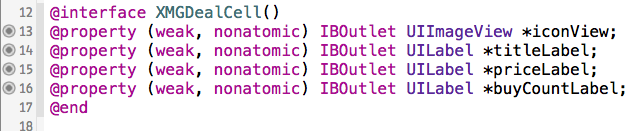
- 需要提供一个模型属性,重写模型的set方法,在这个方法中设置模型数据到子控件上


- 将storyboard中的子控件连线到类扩展中
- 1.创建一个继承自UITableViewCell的子类,比如XMGDealCell
xib自定义cell- 1.创建一个继承自UITableViewCell的子类,比如XMGDealCell
- 2.创建一个xib文件(文件名建议跟cell的类名一样),比如XMGDealCell.xib
- 拖拽一个UITableViewCell出来
- 修改cell的class为XMGDealCell
- 设置cell的重用标识
- 往cell中添加需要用到的子控件
- 3.在控制器中
- 利用registerNib...方法注册xib文件
- 利用重用标识找到cell(如果没有注册xib文件,就需要手动去加载xib文件)
- 给cell传递模型数据
- 4.在XMGDealCell中
- 将xib中的子控件连线到类扩展中
- 需要提供一个模型属性,重写模型的set方法,在这个方法中设置模型数据到子控件上
- 也可以将创建获得cell的代码封装起来(比如cellWithTableView:方法)
- 1.创建一个继承自UITableViewCell的子类,比如XMGDealCell
代码自定义cell(使用frame)- 1.创建一个继承自UITableViewCell的子类,比如XMGDealCell
- 在initWithStyle:reuseIdentifier:方法中
- 添加子控件
- 设置子控件的初始化属性(比如文字颜色、字体)
- 在layoutSubviews方法中设置子控件的frame
- 需要提供一个模型属性,重写模型的set方法,在这个方法中设置模型数据到子控件
- 在initWithStyle:reuseIdentifier:方法中
- 2.在控制器中
- 利用registerClass...方法注册XMGDealCell类
- 利用重用标识找到cell(如果没有注册类,就需要手动创建cell)
- 给cell传递模型数据
- 也可以将创建获得cell的代码封装起来(比如cellWithTableView:方法)
- 1.创建一个继承自UITableViewCell的子类,比如XMGDealCell
代码自定义cell(使用autolayout)- 1.创建一个继承自UITableViewCell的子类,比如XMGDealCell
- 在initWithStyle:reuseIdentifier:方法中
- 添加子控件
- 添加子控件的约束(建议使用
Masonry) - 设置子控件的初始化属性(比如文字颜色、字体)
- 需要提供一个模型属性,重写模型的set方法,在这个方法中设置模型数据到子控件
- 在initWithStyle:reuseIdentifier:方法中
- 2.在控制器中
- 利用registerClass...方法注册XMGDealCell类
- 利用重用标识找到cell(如果没有注册类,就需要手动创建cell)
- 给cell传递模型数据
- 也可以将创建获得cell的代码封装起来(比如cellWithTableView:方法)
- 1.创建一个继承自UITableViewCell的子类,比如XMGDealCell
- 非等高的cell
- xib自定义cell(重点)
- 在模型中增加一个cellHeight属性,用来存放对应cell的高度
- 在cell的模型属性set方法中调用[self layoutIfNeed]方法强制布局,然后计算出模型的cellheight属性值
- 在控制器中实现tableView:estimatedHeightForRowAtIndexPath:方法,返回一个估计高度,比如200
- 在控制器中实现tableView:heightForRowAtIndexPath:方法,返回cell的真实高度(模型中的cellHeight属性)
- storyboard自定义cell
- 代码自定义cell(frame)
- 代码自定义cell(Autolayout)
- storyboard自定义cell
- 代码自定义cell(frame)
- 代码自定义cell(Autolayout)
- xib自定义cell(重点)
/**
 * 返回每一行的估计高度
 * 只要返回了估计高度,那么就会先调用tableView:cellForRowAtIndexPath:方法创建cell,再调用tableView:heightForRowAtIndexPath:方法获取cell的真实高度
 */
- (CGFloat)tableView:(UITableView *)tableView estimatedHeightForRowAtIndexPath:(NSIndexPath *)indexPath
{
    return 200;
}
    // 强制布局,没有显示之前
    [cell layoutIfNeeded];
    self.heights[@(indexPath.row)] = @(cell.height);
    // 对象,要转换为CGFloat类型
    [self.heights[@(indexPath.row)] doubleValue]
告诉系统content最大宽度
mainScreen :得到手机屏幕对象
这个方法在子控件全部创建完毕再调用
使计算结果和实际结果相等
当通过stoarby、xib创建在这设置
通过代码创建则通过类工厂方法设置
- (void)awakeFromNib
{
   self.content.preferredMaxLayoutWidth = [UIScreen mainScreen].bounds.size.width - 20;
}

~~~objc
+ (instancetype)statusWithDict:(NSDictionary *)dict
{
    WZStatus *status = [[WZStatus alloc] init];
    // 利用这个方法可以获取模型中的属性并赋值给同名的属性
    [self setValuesForKeysWithDictionary:dict];
    return status;
}
~~~
- 这个方法可以增加左滑功能额外的按钮
- 要先实现
(void)tableView:(UITableView *)tableView commitEditingStyle:(UITableViewCellEditingStyle)editingStyle forRowAtIndexPath:(NSIndexPath *)indexPath - 然后用UITableViewRowAction
- 要先实现
- (NSArray *)tableView:(UITableView *)tableView editActionsForRowAtIndexPath:(NSIndexPath *)indexPath
{

    UITableViewRowAction *action = [UITableViewRowAction rowActionWithStyle:UITableViewRowActionStyleDefault title:@"增加" handler:^(UITableViewRowAction *action, NSIndexPath *indexPath) {
        // 点击增加的时候调用
        NSLog(@"增加");

    }];
    action.backgroundColor = [UIColor greenColor];
    UITableViewRowAction *action1 = [UITableViewRowAction rowActionWithStyle:UITableViewRowActionStyleDefault title:@"删除" handler:^(UITableViewRowAction *action, NSIndexPath *indexPath) {
        // 点击增加的时候调用
        NSLog(@"删除");

    }];


    return @[action,action1];
}